 spokt
spoktReader guide
How to Make Your iPhone Read Any PDF Aloud
The fastest way to make your iPhone read a PDF aloud is Speak Screen: turn it on in Settings > Accessibility > Spoken Content, open the PDF, and swipe down from the top of the screen with two fingers. It's free and built in — but the default voice is robotic, it can stop mid-document, and it won't reliably highlight words as it reads. Here's the full setup, the fixes for the common failures, and a better option for long PDFs.
Two Built-In Ways to Make Your iPhone Read a PDF Aloud
Your iPhone has shipped with a screen reader for years — it's just buried in Settings, and most people never find it. It's called Speak Screen, and setup takes about 60 seconds:
- Open Settings > Accessibility > Spoken Content.
- Toggle on Speak Screen. While you're here, turn on Speak Selection too (it adds a Speak button whenever you select text) and Highlight Content (it highlights text as it's spoken, in apps that support it).
- Open your PDF anywhere — Files, Safari, Mail, or Apple Books.
- Swipe down from the very top of the screen with two fingers. A small speech controller appears with play/pause, skip, and speed buttons, and your iPhone starts reading.
The two-finger gesture can be finicky — it competes with Notification Center and Control Center, so start the swipe right at the top edge. If you can't get it to trigger, ask Siri instead: with the PDF open, say "Speak Screen" and it starts the same reader. Siri fails the same way the gesture does, though — if there's no selectable text on screen (more on scanned PDFs below), you'll get an error or silence.
For a sentence or two rather than a whole document, Speak Selection is quicker: select the text, then tap Speak in the pop-up menu. And if your PDF is a book you've added to Apple Books, that's where Speak Screen behaves best — it can even turn pages as it reads, which is the closest the built-in tools get to an audiobook experience.
Fix the Robotic Default Voice
Out of the box, Speak Screen often uses a compact, decidedly robotic voice. Much better voices exist — they just aren't downloaded by default:
- Go to Settings > Accessibility > Spoken Content > Voices.
- Pick your language and browse the list. Voices marked Enhanced or Premium are larger downloads that sound dramatically better, and the Siri voices are the most natural of the bunch.
- Tap the download icon next to a voice, wait for it to finish, then select it.
One thing worth knowing: iOS 18 shipped a voice regression. After updating, many people found Speak Screen had reverted to the old 2011-era robotic voice even though they'd been using a natural one before. The fix is the same recipe — go back into Voices, explicitly download a Siri voice (Siri Voice 4 is a popular pick) or a Premium voice, and select it. This iOS 18 walkthrough covers the exact taps.
Even upgraded, system voices sit a tier below the AI voices in dedicated reading apps — flat pacing over long documents is the usual complaint. For a few pages it's fine; for an hour of listening it grates.
"No Speakable Content": Why Some PDFs Won't Read
Sometimes you trigger Speak Screen and get the error "No speakable content could be found on the screen." Nine times out of ten the cause is a scanned or image-only PDF: to your eyes it's text, but to iOS each page is just a photograph with no text layer to read. It's one of the most common complaints in Apple's own support forums.
The fix is OCR — optical character recognition, which converts the page images into real text:
- Live Text: take a screenshot of the page, open it in Photos, touch and hold the text to select and copy it, then paste it into Notes and run Speak Screen there. Free, but tedious beyond a couple of pages.
- An OCR scanner app: run the PDF through any scanner tool that exports a searchable PDF, then reopen the result. Once a text layer exists, Speak Screen (and every other read-aloud method) works.
If your PDF definitely has real text and still won't read, two quirks are worth trying: switch your PDF viewer from continuous scrolling to single-page view — Speak Screen gets confused by long scrolling documents — and toggle Speak Screen off, restart the phone, and turn it back on.
Speak Screen's Real Limits (Know Them Before You Rely on It)
Speak Screen is genuinely useful for a few pages. On a 60-page PDF, the limitations pile up:
- It can stop when the screen locks or you switch apps. Users across several iOS versions report reading halting mid-document when the phone locks — Apple's forums are full of these threads. Keeping the screen awake works, but it burns battery and ties up your phone.
- It doesn't remember your place. Stop at page 40 and there's no resume — you scroll back by hand and restart from wherever you land.
- It reads everything on screen — headers, footers, page numbers, sidebars — and it can skip or loop sections when pages turn, especially in scrolling views.
- Word highlighting is patchy. The Highlight Content setting exists, but in most PDF apps you get sentence-level highlighting at best, often nothing — so you can't visually follow along word by word.
| Speak Screen | Dedicated reading app | |
|---|---|---|
| Voice quality | System voices; robotic unless upgraded | Natural, premium AI voices |
| Remembers your place | No | Yes, per document |
| Word-by-word highlighting | Patchy, app-dependent | Synced to the audio |
| Long documents | Can stop on lock, skips sections | Converted to audio once, plays like an audiobook |
| Cost | Free, built in | Free tiers vary; some pay-once options |
Honest bottom line: if you listen to a PDF occasionally, Speak Screen plus an upgraded voice is enough — use it and keep your money. If PDFs are how you get through textbooks, papers, reports, or long articles, an app that converts the PDF into actual audio and highlights each word as it reads removes every failure mode above at once. That's exactly what Spokt does.
How to Read Any PDF Aloud With Spokt
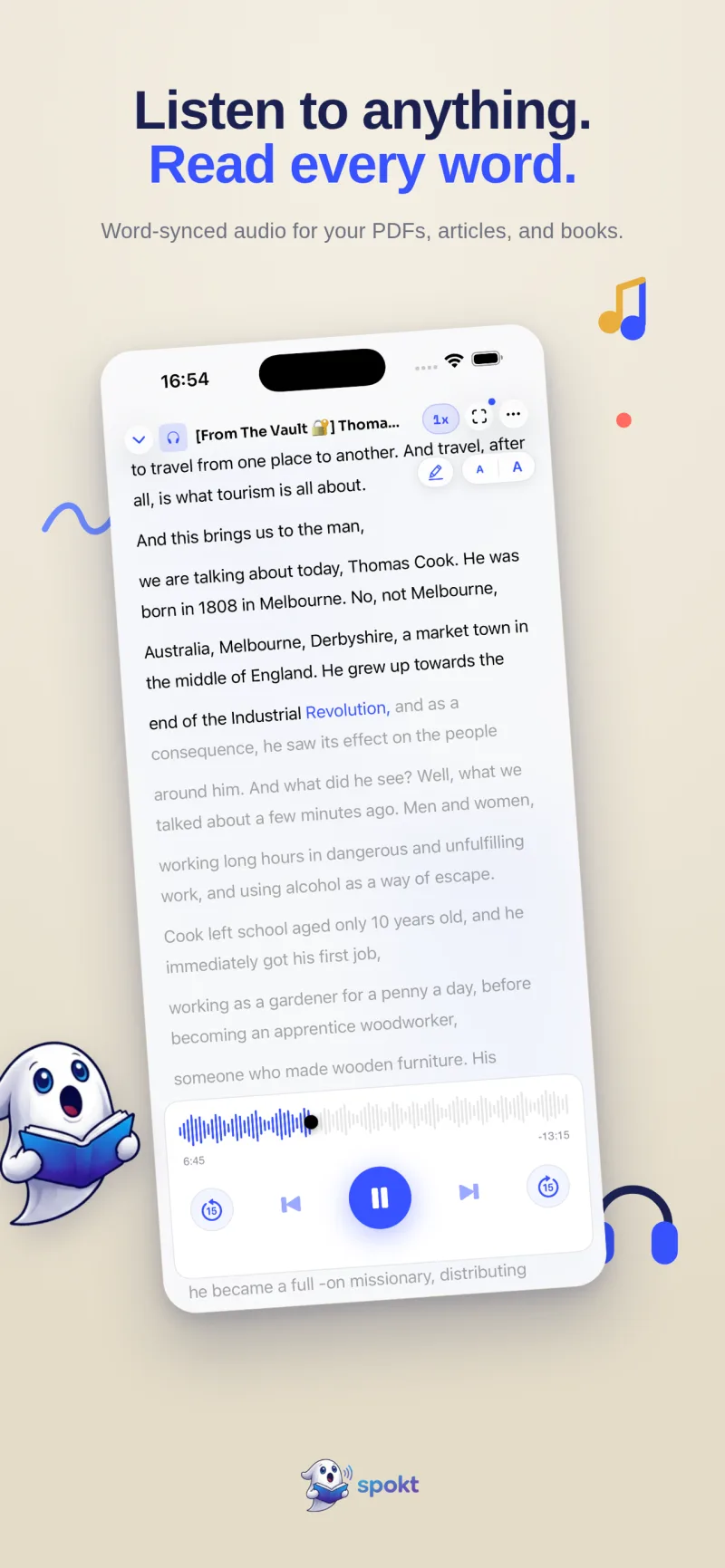
Spokt is a free iPhone and iPad app that turns your PDFs and EPUBs into audio with natural AI voices — plus word-by-word highlighting and a library that remembers exactly where you stopped.
- Get Spokt from the App StoreIt's free to download with a real free tier — monthly premium voice time included, no subscription required to start. With a paid plan, top up premium voice time and sync minutes anytime with voice packs.
- Import your PDF or EPUBDrop in a PDF or EPUB, paste a web link — plain text works the same way, and Spokt converts it all to audio.
- Pick a natural voiceChoose a premium AI voice or a Studio broadcast-quality voice. Audio generates in the background, so you can keep browsing while it converts.
- Press play and follow alongEvery word highlights in sync with the audio, karaoke-style — no more losing your place on the page.
- Set your speedSlow to 0.75× for dense material or push toward 2× for a skim. Your position saves automatically, with progress shown right on the cover.
- Come back anytime, on iPhone or iPadYour library syncs across your devices, with folders and search — so a long PDF behaves like an audiobook, not an abandoned browser tab.
Frequently asked questions
What's the easiest way to listen to a PDF on iPhone?
For a quick listen, enable Speak Screen (Settings > Accessibility > Spoken Content), open the PDF, and swipe down from the top of the screen with two fingers. For anything longer than a few pages, a dedicated app is easier: Spokt converts the PDF to audio with a natural voice, remembers your place, and highlights each word as it reads. Either way, setup takes under a minute.
How do I make my iPhone read a PDF to me with Siri?
Open the PDF on screen, then say "Hey Siri, Speak Screen." Siri triggers the same reader as the two-finger gesture, which is handy when your hands are busy. It shares the same limits, though: it needs selectable text on screen (scanned PDFs fail), and reading can stop when the screen locks or the page turns.
Is there a free app that reads PDFs aloud on iPhone?
Yes. Spokt is free to download on the App Store with a genuine free tier that includes monthly premium voice time, and there's a one-time lifetime unlock if you want everything without a subscription. If you're weighing paid options too, see our breakdown of free Speechify alternatives. With a paid plan, top up premium voice time and sync minutes anytime with voice packs.
Why does Speak Screen stop reading in the middle of my PDF?
The usual culprits are the screen locking, switching apps, or a continuous-scroll PDF view confusing the page detection. Try single-page view, keep the screen awake, and toggle Speak Screen off and on after a restart. If it keeps happening, converting the PDF to audio avoids the problem entirely — see our guide to turning a PDF into an audiobook.
Can my iPhone read a scanned PDF aloud?
Not directly — a scanned PDF is just pictures of text, so Speak Screen reports "no speakable content," and text-to-speech apps can't read it either. Run it through an OCR tool first (or use Live Text on screenshots for a page or two) to create a searchable PDF with a real text layer; after that, any read-aloud method works.