 spokt
spoktReader guide
Convert PDF to Audiobook — Free, on Your iPhone
You can convert PDF to audiobook for free in two ways: upload the file to a web converter and download an MP3, or open it in an iPhone app that reads it aloud with natural AI voices. The free converters work, but their limits bite fast — Zamzar allows two conversions a day, and NaturalReader locks MP3 downloads behind a paid plan. The app route skips the upload entirely and keeps everything an MP3 loses: your place in the book, chapters, and word-synced highlighting.
Convert a PDF to an audiobook: the two routes
There are two honest answers to this question, and they suit different situations. The first is the classic route: a free web converter. Sites like Zamzar and NaturalReader let you upload a PDF, pick a voice, and download (or stream) the result as audio. It works — but the free tiers are built to nudge you toward a paid plan, and the limits show up on your very first real document:
- Zamzar caps free users at two conversions every 24 hours, with a 50MB file limit — one big textbook can blow through both in a single afternoon.
- NaturalReader lets you listen in the browser for free, but downloading the MP3 — the whole point of using a converter — is reserved for paid subscribers.
- Most smaller free converters lean on basic system voices, so the output sounds flat and mechanical. Tolerable for a two-page memo; exhausting for a 300-page book.
Converters also treat your PDF as one undifferentiated wall of text. Headers, footers, and page numbers get read aloud mid-sentence, chapter breaks disappear, and you end up with a single long audio file: no bookmarks, no chapters, and no memory of where you stopped listening yesterday.
The second route skips the file juggling entirely: use a PDF to audiobook app that converts and plays in one place. Instead of upload, wait, download, transfer, you import the PDF or EPUB once, choose a voice, and press play — and the app remembers your position like a real audiobook player. The rest of this guide covers both routes honestly so you can pick the right one, starting with what your iPhone can already do for free.
What your iPhone can already do: Speak Screen
Before installing anything, try the built-in option. Every iPhone can turn a PDF into spoken audio with Speak Screen:
- Open Settings → Accessibility → Spoken Content (labeled Read & Speak on some newer iOS versions).
- Turn on Speak Screen.
- Open your PDF in Files or Books, then swipe down from the top of the screen with two fingers.
A small controller appears with play, pause, and speed buttons, and your iPhone starts reading whatever is on screen. Apple documents the feature in its Spoken Content guide.
So why doesn't this end the conversation? Because Speak Screen is an accessibility tool, not an audiobook player. The default voice is noticeably robotic — downloading an enhanced voice in the same settings menu helps, but it still trails modern AI voices. It reads everything on the page, page numbers and footers included. And it has no concept of a book: nothing highlights as it reads, it won't remember your position tomorrow, and playback can stop when the screen locks or you switch apps. For the full setup walkthrough, including fixes for the voice and the mid-document stops, see our guide to making your iPhone read any PDF aloud.
Do you actually need the MP3 file?
Most people searching for a converter assume the goal is a downloadable MP3. Sometimes it genuinely is: if you want to load audio onto an old MP3 player, play it in a car with a USB port, or hand the file to someone else, a web converter is the right tool — just budget for the paid tier once the free limits kick in.
But if the plan is simply "listen on my phone," the MP3 is the worse version of what you already had. Here's how the three routes compare:
| Free web converter | Speak Screen | Reading app (Spokt) | |
|---|---|---|---|
| Cost | Free with caps (2/day on Zamzar; MP3 paywalled on NaturalReader) | Free, built in | Free tier; optional Plus or one-time lifetime unlock |
| Voice | Basic, often flat | Robotic default; enhanced voices help | Natural premium AI voices, plus Studio voices |
| Remembers your place | No — one long file | No | Yes, synced across devices |
| Text on screen | No — audio only | Yes, but no highlighting | Yes, word-by-word synced highlighting |
| Speed control | Depends on your player | Yes | 0.75× up to 2× |
The pattern is clear: a downloaded MP3 divorces the audio from the text. You lose your resume position, you lose chapters, and you lose the ability to see each word as you hear it — which is exactly what makes listening to dense material actually stick. If following along on the page matters to you (it's a big deal for focus and comprehension), see our comparison of apps that highlight words as they read aloud.
Voice quality, scanned PDFs, and long documents
Three things separate a pleasant audiobook from a robotic slog, and they're worth checking before you commit to any tool.
Voice quality is the whole game. A voice you'd tolerate for a paragraph is not a voice you can live with for six hours of a textbook. This is the number-one thing converter sites market, and it's the number-one thing their free tiers hold back. Listen to a real sample of the exact voice you'll get before paying anything — and prefer tools whose free tier gives you a real listening allowance rather than a locked demo — in Spokt, 3 hours of new standard-voice audio every month is free (plus the first 15 minutes of any book), whole books are unlimited on Plus, and premium voices are metered. With a paid plan, top up premium voice time and sync minutes anytime with voice packs.
Scanned PDFs need a text layer first. If your PDF is a scan — photos of pages rather than selectable text — no text-to-speech tool can voice it directly, whatever the marketing implies; the text has to be extracted first. On iPhone, Live Text can copy text out of a page image, and several web converters sell OCR as a paid feature. Spokt reads text-based PDFs, EPUBs, web articles, and plain text; if you're starting from a scan, run it through OCR first and import the text version.
Long documents are a workflow question. A 400-page PDF rendered as one MP3 is unmanageable — there's no way to skim, jump back, or find where you fell asleep. In a reading app, the audio generates in the background while you keep using your phone, the book lives in a library with folders and visible progress on its cover, everything is searchable, and your position follows you across devices. That's the difference between a converted file and an actual audiobook.
How to turn a PDF into an audiobook with Spokt
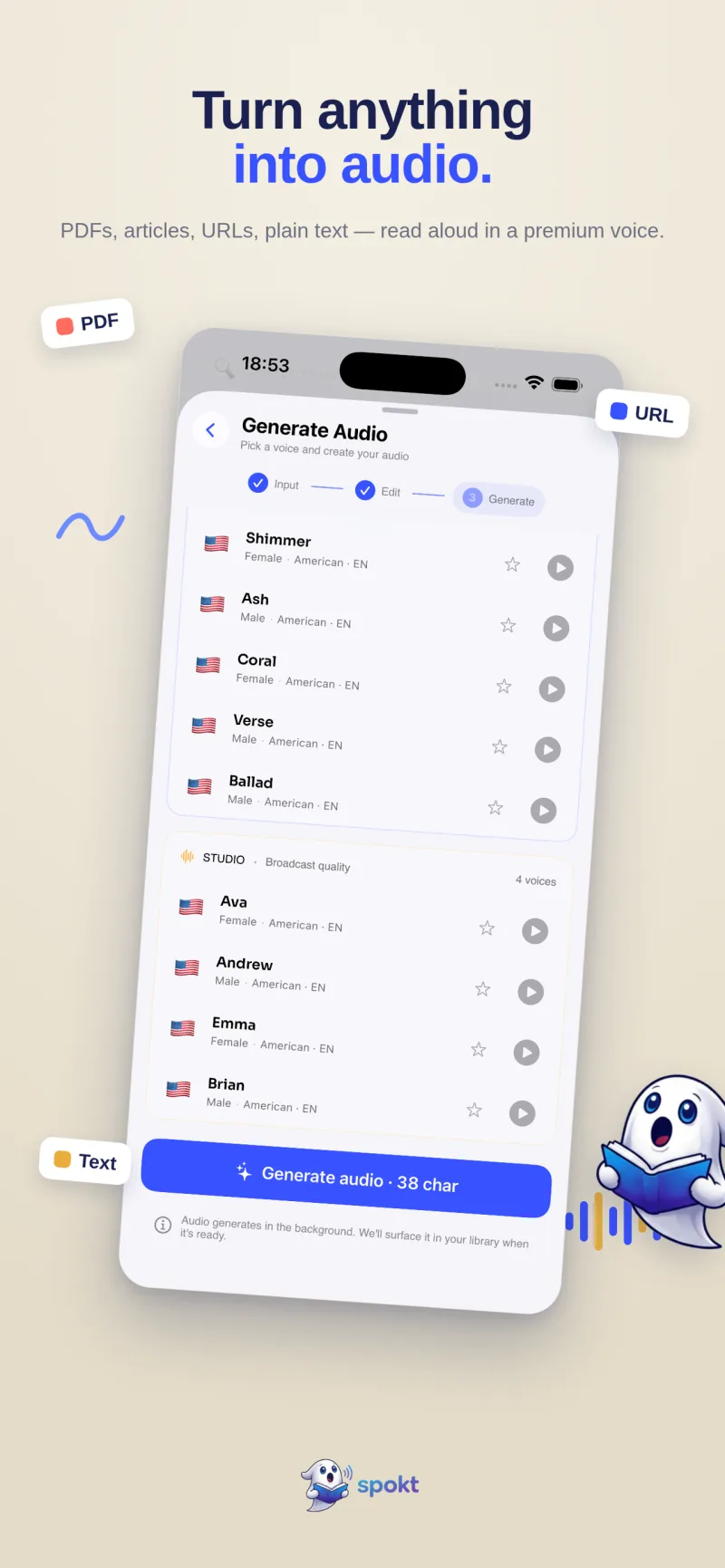
Spokt is a free iPhone and iPad app that does the convert-and-listen flow in one place — no uploads to juggle, no MP3 to shuttle around. Here's the whole process.
- Get Spokt from the App StoreIt's free to download: 3 hours of new standard-voice audio every month, plus the first 15 minutes of any book, convert and play at no cost. A monthly allowance of premium voice time lets you try the upgraded voices before deciding whether you need Plus or the one-time lifetime unlock. With a paid plan, top up premium voice time and sync minutes anytime with voice packs.
- Import your PDF or EPUBAdd the PDF or EPUB to your library. Spokt also takes web articles and plain text, so the rest of your reading pile can live in the same place.
- Pick a natural voiceChoose a premium AI voice, or a Studio voice for broadcast quality. Audio generates in the background, so you can queue a long document and put your phone away.
- Press play and read alongWord-by-word karaoke highlighting stays perfectly synced to the narration, so your eyes and ears track the same sentence — and you never lose your place on the page.
- Set your paceAdjust playback from 0.75× up to 2× as the material demands — slow for dense chapters, fast for review.
- Let the library do the rememberingBooks sit in folders with progress shown right on their covers, your library is searchable, and your listening position syncs across your devices.
Frequently asked questions
Is there a completely free PDF to audiobook converter?
Yes, with real limits. Zamzar converts for free but caps you at two conversions per day and 50MB per file; NaturalReader lets you listen free in the browser but paywalls the MP3 download; most other free converters use basic voices that wear thin over a long book. On iPhone, Spokt's standard voices include 3 hours of new audio per month plus the first 15 minutes of any book at no cost — and a monthly allowance of premium voice time lets you sample the upgraded voices before paying. Upgrade only if you outgrow it. With a paid plan, top up premium voice time and sync minutes anytime with voice packs.
How do I turn a PDF into an audiobook on iPhone without installing anything?
Use Speak Screen: go to Settings > Accessibility > Spoken Content, turn on Speak Screen, open your PDF, and swipe down from the top of the screen with two fingers. It's free and works in any app, but the voice is robotic, nothing highlights as it reads, and it forgets your position — full setup steps and fixes are in our guide to making your iPhone read a PDF aloud.
What should I look for in a PDF to audiobook app?
Four things: natural voices you can tolerate for hours (listen to a sample before paying), a library that remembers your position, synced text highlighting so you can follow along on the page, and honest pricing — a real free tier and ideally a one-time purchase option instead of subscription-only. Spokt checks all four on iPhone and iPad; if you're weighing the big subscription apps, our Speechify alternatives guide compares them on cost.
Can I convert a scanned PDF to an audiobook?
Not directly — a scanned PDF is a set of page images, and text-to-speech tools can only read actual text. Extract the text first: on iPhone, Live Text can copy text out of a page image, and several web converters offer OCR on their paid plans. Once you have a text-based PDF or plain text, any reader — Spokt included — can convert it to audio.
Will I get an MP3 file I can keep?
From a web converter, yes — that's their product, within the free-tier limits. Spokt takes the other approach: it plays your converted audio inside the app, which is exactly what preserves resume position, adjustable speed, and word-synced highlighting that a standalone MP3 loses. If you specifically need a file for an old MP3 player or a car USB stick, a converter is the right tool; for listening on your phone, in-app playback is simply the better experience.